
If you have ever felt the specific rage that comes from buying a $15 printer cartridge that runs out after twenty pages, you are the reason the Epson EcoTank ET-2803 exists. It promises to end the “inkxiety” of rationing color prints by replacing expensive plastic shells with massive, refillable liquid tanks. But is this tank system actually a money-saver, or just a messy science experiment?
After months of testing its print speeds, photo quality, and maintenance quirks, I have the answer. If you are ready to stop paying a premium for ink, you should buy this product directly from the official Epson website or a major authorized retailer to ensure you get a valid warranty, especially given the market for third-party “converted” machines.
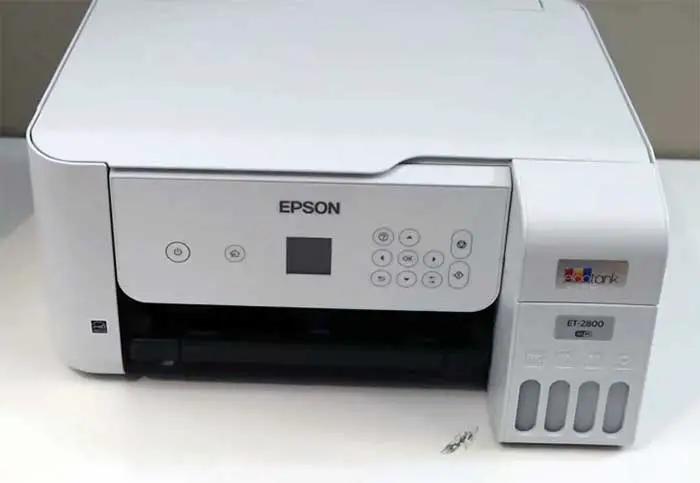
My Experience With Epson EcoTank ET-2803
The setup process was my first hurdle, and it was a mixed bag. Taking the printer out of the box, I was intimidated by the bottles of liquid ink. I had visions of staining my carpet permanently blue. However, Epson has idiot-proofed this part. The bottle nozzles are “keyed,” meaning the blue bottle physically won’t fit into the red tank’s slot. You turn them upside down, and they drain automatically without squeezing, stopping exactly when the tank is full. It was surprisingly satisfying to watch the ink levels rise in the visible windows on the front.
Once filled, however, I hit the “Wi-Fi wall.” The ET-2803 does not have a touchscreen; it has a tiny 1.44-inch color display that you navigate with arrow buttons. Entering my lengthy Wi-Fi password by scrolling through the alphabet character by character felt like texting on a Nokia brick phone from 2003. It took three tries to get it connected. If you buy this, do yourself a favor and use the “Epson Smart Panel” app on your phone for the initial setup—it is significantly less painful than using the printer’s physical buttons.
In terms of daily use, the printer is a slow-and-steady workhorse. When I printed a 30-page research paper, I had time to go make a sandwich before it finished. It is not built for speed. However, the text came out crisp, dark, and professional. The real shock came from the ink levels. After printing hundreds of pages—including full-color flyers for a garage sale—the ink levels barely budged. On my old cartridge printer, I would have been on my second set of $40 cartridges by now. With the ET-2803, I am still on the starter ink that came in the box.
The biggest annoyance I found is the lack of automatic double-sided printing. If I want to save paper, I have to print the odd pages, take the stack out, flip it over (hoping I have the orientation right), and feed it back in. For a printer that costs over $200, this manual labor feels outdated. But every time I look at the full ink tanks and realize I haven’t spent a dime on supplies in six months, I forgive it.
Also read:My Thoughts On Lectric XP Lite 2.0
Pros Of Epson EcoTank ET-2803
- Massive Ink Savings: The economics of this printer are undeniable. The ink bottles cost a fraction of what cartridges do and yield thousands of pages. Epson claims the ink in the box is equivalent to about 80 individual cartridges. For a student or a home office that prints frequently, the printer essentially pays for itself within the first year simply by eliminating the recurring cost of cartridges.
- Excellent Print Resolution: Despite being an entry-level EcoTank, the ET-2803 boasts a maximum print resolution of 5760 x 1440 dpi. This is higher than many competitors in the same price bracket. When using high-quality glossy photo paper, the results are surprisingly vibrant and sharp. It handles fine details in photos better than you would expect for a 4-color system, making it a viable option for printing family snapshots or school art projects.
- Visible Ink Levels: There is no guessing game with this machine. The ink tanks are located on the front of the unit with clear, translucent windows. You can see exactly how much ink is left at a glance. This eliminates the frustration of a software popup telling you you are “low on cyan” when you suspect you still have plenty left. You are in total control of the supply.
- Compact Footprint: The design is impressively space-efficient. Because the ink tanks are integrated into the front of the chassis rather than bolted onto the side, the unit is rectangular and compact. It fits easily on a small dorm desk, a bookshelf, or a cramped home office corner. The rear paper feed folds down when not in use, further reducing its profile and keeping dust out of the mechanism.
- Versatile Paper Handling: The rear paper feed design, while old-school, actually has a functional advantage: a straighter paper path. This allows the ET-2803 to handle slightly thicker media, such as cardstock or envelopes, better than printers that force paper to make a U-turn from a bottom cassette. It rarely jams when fed specialty paper one sheet at a time.
- Wi-Fi Direct Capability: Even if your home internet goes down, the printer supports Wi-Fi Direct. This creates a direct connection between your smartphone and the printer, allowing you to print documents or photos without needing a router. This is a crucial backup feature for students who might be dealing with spotty dorm Wi-Fi right before a deadline.

Cons Of Epson EcoTank ET-2803
- Tiny, Non-Touch Display: The 1.44-inch LCD screen is the printer’s weakest hardware feature. It is about the size of a postage stamp and is not a touchscreen. Navigating menus to check settings, perform maintenance cleaning, or connect to Wi-Fi requires tedious pressing of physical arrow buttons. It feels antiquated and can be frustrating for users accustomed to the intuitive touch interfaces of modern smartphones.
- Manual Duplexing Only: The lack of automatic two-sided printing is a significant omission. If you want to print on both sides of the page, the driver will pause and prompt you to physically flip the stack of paper and reinsert it. This is inconvenient for large documents and increases the risk of user error (printing upside down or on the same side twice).
- Slow Print Speeds: Patience is a requirement with this model. Rated at roughly 10 pages per minute (ppm) for black and only 5 ppm for color, it is significantly slower than comparable laser printers or high-end inkjets. If you need to print a 50-page full-color report five minutes before a meeting, this printer will make you late. It is designed for volume, not velocity.
- Non-Replaceable Maintenance Box: Unlike the slightly more expensive ET-2850, the ET-2803 does not have a user-replaceable maintenance box (the pad that collects waste ink during cleaning cycles). When this pad fills up, the printer will stop working and display an error requiring service. While there are unofficial workarounds involving screwdrivers and third-party reset keys, the official solution is a service center visit, which is a major hassle.
- No Automatic Document Feeder (ADF): If you need to scan or copy a stack of 10 documents, you have to place them on the glass flatbed one by one. There is no top feeder to suck the pages in automatically. This makes the unit poor for users who do a lot of archiving or administrative work involving multi-page contracts.
- Prone to Nozzle Clogs if Idle: Like all liquid ink printers, the ET-2803 hates being ignored. If you leave it sitting for a month without printing, the ink in the tiny print head nozzles can dry out, leading to streaks and white lines. Recovering from a bad clog can require running multiple “Power Cleaning” cycles, which wastes a significant amount of ink and fills up the maintenance pad mentioned above.
Read more: Comparison Of Strider Sport And Classic
Maintenance Tips For Epson EcoTank ET-2803
- The “Weekly Print” Rule: The absolute most important maintenance tip is to use the printer regularly. Inkjet print heads are like muscles: use them or lose them. Print a test page that uses all four colors (Cyan, Magenta, Yellow, Black) at least once a week. This keeps the ink flowing and prevents it from drying into a hard clog inside the nozzle.
- Use the Power Button: Never turn the printer off by just flipping a power strip switch or unplugging it from the wall. When you use the physical power button on the printer panel, the machine performs a shutdown sequence that “parks” the print head and caps it with a rubber seal. This seal protects the moist ink from air. Cutting the power abruptly leaves the print head exposed, guaranteeing a clog.
- Keep the Rear Feed Closed: When you aren’t printing, flip the little plastic flap over the rear paper feed slot. This feed is a funnel for dust, pet hair, and crumbs. If debris falls into that slot, it will eventually work its way down to the rubber pickup rollers, causing paper feed errors or jamming. Keeping it closed keeps the internals clean.
- Refill Before Empty: Do not wait until the ink tank is completely bone dry before refilling. If the ink level drops below the lower line on the window, you risk introducing air bubbles into the internal tubes. Air in the lines is much harder to fix than a simple clog and can require a massive amount of ink to “flush” out. Top it off when it gets to the bottom quarter.
- Use High-Quality Paper: Cheap, dusty copy paper sheds microscopic fibers that accumulate on the print head and rollers over time. Using slightly higher quality paper (look for “ColorLok” or simply a brighter white rating) produces less lint, keeping the feed mechanism gripping properly and the print head clean for longer.
- Check for Firmware Updates: Epson frequently releases firmware updates to fix Wi-Fi connection stability issues and improve AirPrint reliability. You can check for these updates directly through the printer’s menu or via the Epson Software Updater on your computer. Keeping the firmware current is often the fix for the dreaded “Printer Offline” error.
Comparison with Other Brands

- Canon PIXMA G3270:
- Maintenance: User-Replaceable Parts: The Canon G-series wins on longevity because the print heads and the maintenance cartridge are easily replaceable by the user. With the Epson ET-2803, if the heads fail or the waste pad fills, it is a service event. With Canon, you just buy a new part and snap it in.
- Interface: Better Screen: The Canon often features a slightly more intuitive interface or button layout, though both suffer from small screens in this price range.
- Verdict: Better for DIY Fixers: If you are comfortable swapping out parts to keep a printer running for 5+ years, the Canon design is more modular and repair-friendly.
- HP Smart Tank 5101:
- Connectivity: Superior App Experience: HP’s “Smart App” is generally regarded as the best in the industry. It offers self-healing Wi-Fi that automatically detects and resolves connection issues, which is a frequent pain point for Epson users.
- Print Heads: Thermal vs. Piezo: HP uses thermal inkjet technology, while Epson uses Piezo (vibration). Epson’s Piezo tech allows for more precise control over droplet size, often resulting in slightly sharper text and detailed photo prints, whereas HP leans towards vibrancy.
- Verdict: Better for Tech Novices: If your main priority is a printer that stays connected to Wi-Fi without you having to mess with IP addresses, the HP Smart Tank is the more user-friendly choice.
- Brother MFC-J1205W (INKvestment Tank):
- System: Hybrid Cartridge: The Brother isn’t a pure tank printer; it uses internal tanks filled by large cartridges. This is less messy than pouring bottles but slightly more expensive per page than the Epson ET-2803.
- Build Quality: Sturdy Construction: Brother printers are legendary for being built like tanks (pun intended). The J1205W generally feels less plasticky and fragile than the lightweight Epson ET-2803.
- Verdict: Better for Occasional Users: If you only print once a month, the Brother system is more forgiving of idle time and less likely to dry out than the Epson’s pure liquid tube system.
Frequently Asked Questions (FAQ)
Technically, yes, and many people do. The ET-2803 is the most popular printer to “convert” for sublimation printing (printing designs on t-shirts and mugs). However, once you put sublimation ink in the tank, you can never use it for regular printing again, and you immediately void your warranty. Epson support will not help you if a converted printer clogs.
Yes, but with limits. Because it uses a rear feed, it can handle cardstock up to about 65lb (176 gsm) reasonably well. However, it is not designed for heavy 110lb cover stock. If you try to feed very thick paper, the rollers may slip, or the paper may jam. Always feed thick paper one sheet at a time to help the mechanism.
White lines or streaks usually mean a nozzle is clogged. This happens if the printer hasn’t been used in a while. Go to the “Maintenance” menu on the printer’s screen and run a “Nozzle Check.” If the pattern has gaps, run a “Head Cleaning.” You may need to do this 2-3 times for stubborn clogs, but wait 24 hours between heavy cleanings to let the ink soften the blockage.
No. The ET-2803 has a flatbed scanner glass only. It does not have an Automatic Document Feeder (ADF) on top. You must lift the lid, place a page, scan it, remove it, and place the next one. If you frequently scan multi-page contracts, you should look at the Epson ET-3800 series or higher.
Conclusion
The Epson EcoTank ET-2803 is a financial game-changer that asks for a little patience in return. It trades the convenience of speed and touchscreens for the undeniable value of penny-per-page printing. While the lack of automatic two-sided printing and the tiny screen are valid frustrations, they are minor annoyances compared to the freedom of never buying a cartridge again. If you want high-quality prints and are tired of the “low ink” warning ruling your life, you should buy this printer.